 Working with the HTML Preview
Markdown Monster's Preview Pane displays your markdown text rendered as Html in close to real time while you are entering text, or when you click or scroll the editor.
The editor also syncs the previewer position that corresponds to the current editor position and highlights the current paragraph, header or section.
The previewer is updated whenever you briefly stop typing and highlights and repositions to the active rendered Html section. You can also force a refresh immediately by pressing
ctrl.
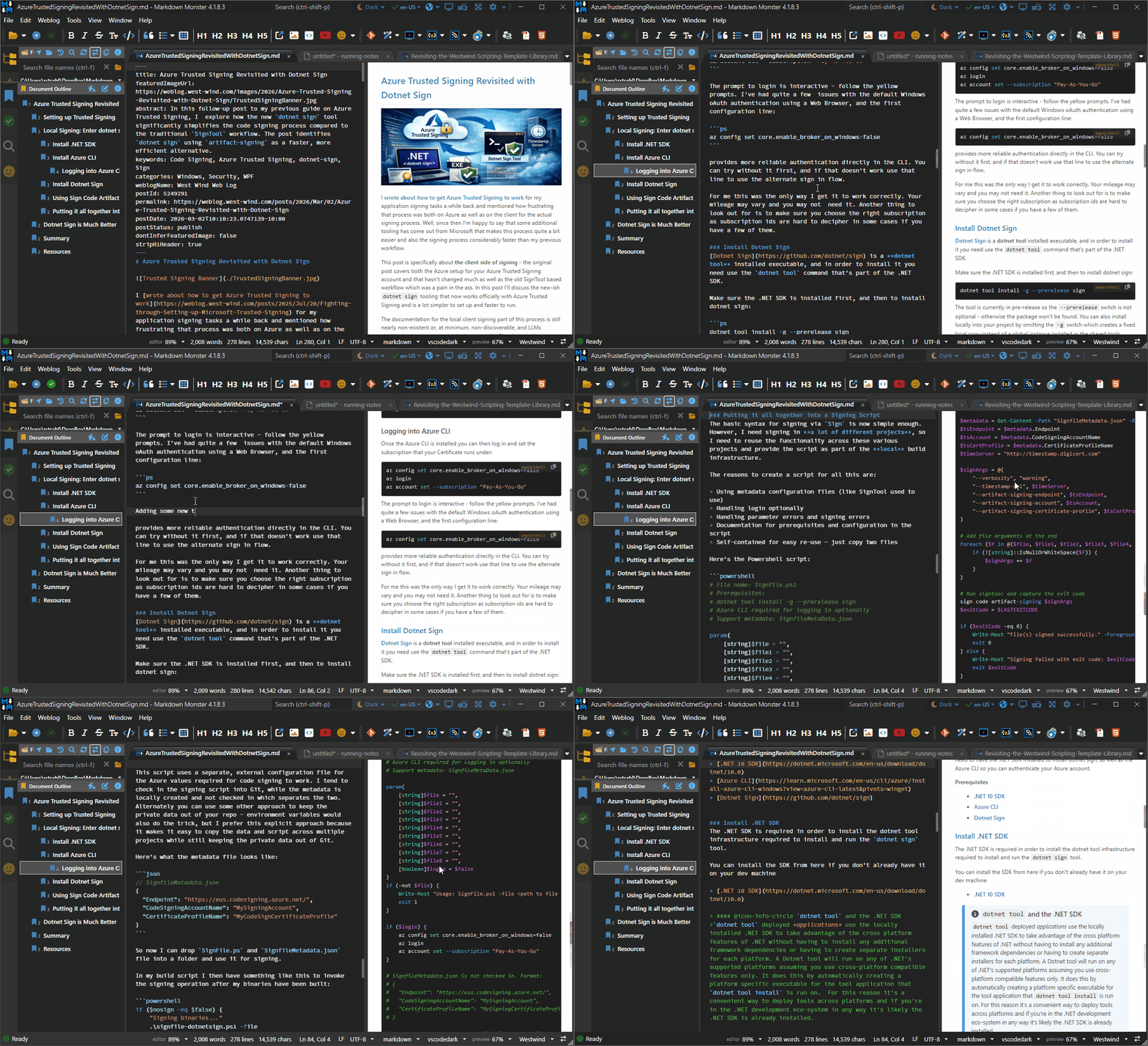
Figure 1 - Preview to Editor Syncing in Markdown Monster
Preview Position Syncing
The editor syncs the preview with updated text when you're typing or pasting etc., and also attempts - as best as possible - to sync the cursor position to the rendered output in the preview.
Editing or selecting text automatically highlights the current paragraph/section in the preview and at the same preview position whenever possible.
When scrolling the editor, the preview aligns to the top of the document, with the preview positioning itself to the rendered section that matches the editor's first visible section.
Preview Sync is not Perfect
Please keep in mind that preview positioning is not an exact science as the editor and Html output don't line up 1 to 1. Although generally the preview reflects the current context and position, there are occasions where the preview maybe off slightly or where matching content is just off the top or bottom the page.
Specifically, large blocks of code, tables or large images can result in content not syncing exactly.
Preview Operations
The editor has a few special operations that affect the way the preview pane is handled:
- Preview Toggling: On or off
- Preview Location: Internal or External
- Preview Sync: How editor and preview sync
- Preview Refresh: Frequency of Refresh
Preview Toggling
Markdown Monster's editor supports previewing of Markdown and HTML content as rendered HTML. The preview window - which can be both internal or external - can be toggled on and off in several ways.
F12 Shortcut Key
Preview Toggle in the top Window menu next to the close box

On the menu via View → Toggle Preview Window
Any of these options will toggle the Preview Pane on and off if you are editing a Markdown, HTML or untitled (New) documents.
Markdown Monster supports editing a variety of text file formats, but on HTML and Markdown documents present the Preview Pane - for all others toggling has no effect and there is no preview pane.
Preview Locations
By default the preview Window can be internal inside of the main Markdown Monster window:
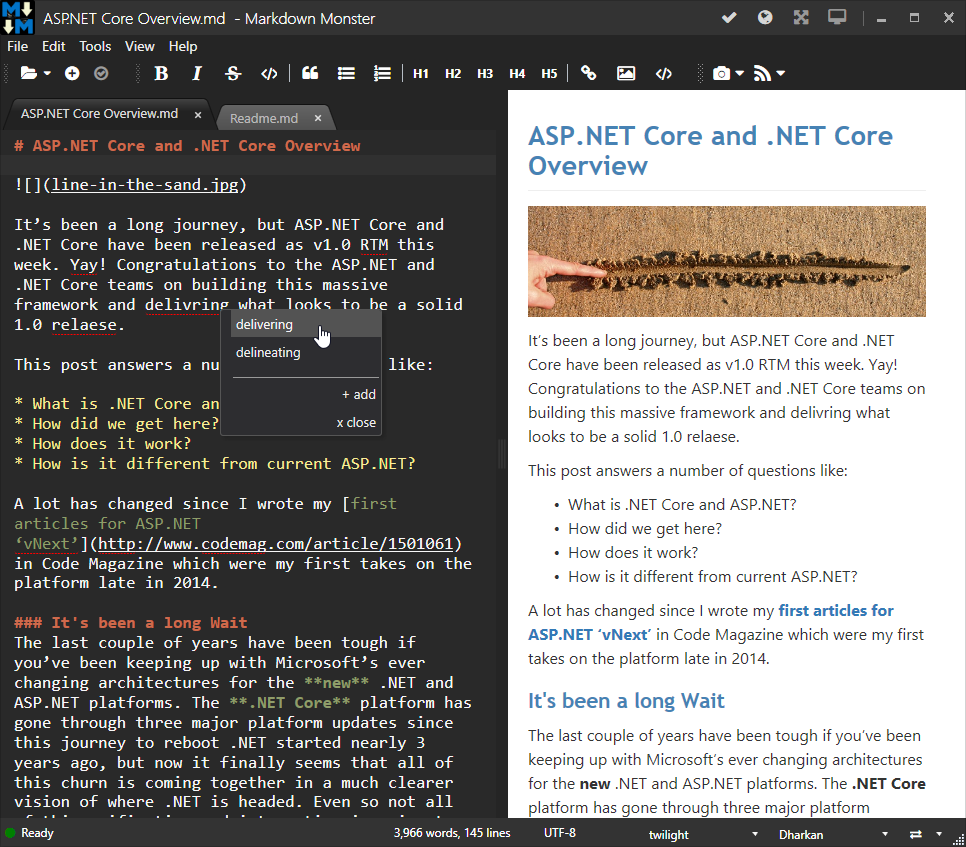
Figure 2 - The internal preview window is part of the main window
Optionally you can also use an external window for the preview:
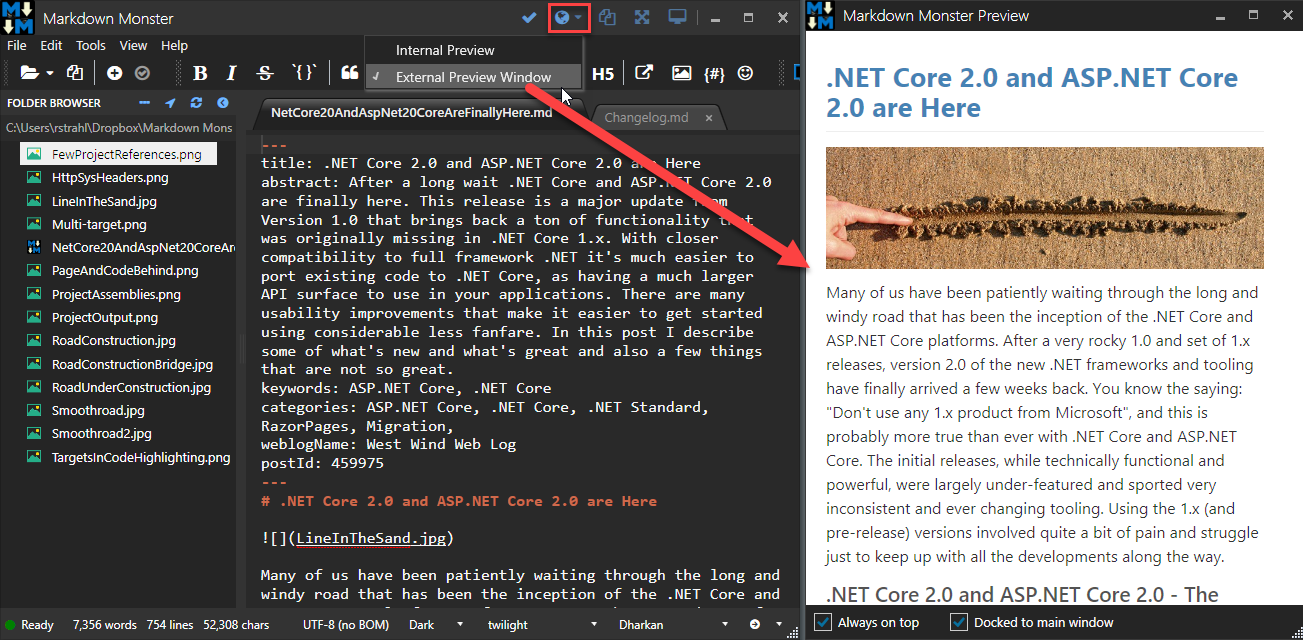
The external window can be Docked to the main Markdown Monster Window (as shown) or can be free floating. The floating window then has additional activation options how it is linked to the main window:
- Activated by Main Window
- Manually activated
- Always on Top
Using an external window can be useful to put the Preview output onto a separate screen.
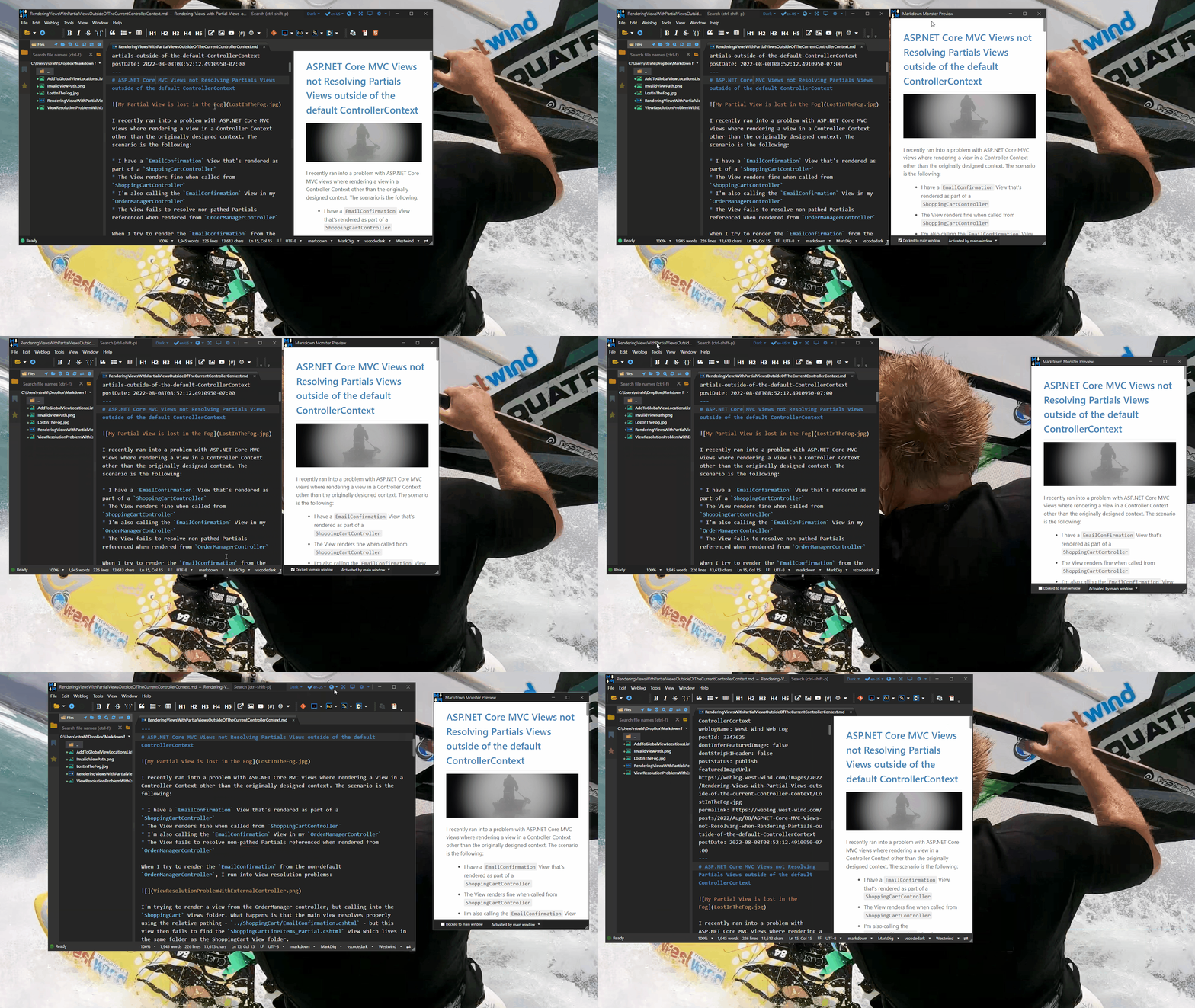
Figure 3 - The detached preview window can either be docked to the main window or float freely including to another monitor
To switch between modes use:
- Views->Internal Preview or Views->External Preview Window
- The dropdown next to the icon in the upper right Window Controls
Preview Refresh
In order to keep the editor responsive while typing the preview window is updated whenever you stop typing for ~1/2 second. This makes for optimal typing speed while still giving a reasonably real time text update for your HTML Preview.
For very large documents (1500+ lines) the no-typing timeout goes up to ~2 seconds.
Preview Scroll Sync
In addition to showing changes as you type, the preview can also sync the editor and preview.
Most commonly you want to scroll the editor and see the preview show the appropriate location as the editor is scrolled. Alternately you can also opt to have preview scrolling sync the editor and you can use both in combination. There are also options to not scroll the preview automatically and instead require manual sync via the Ctrl key or by clicking into the editor.
To this effect there are 5 Preview Sync Mode options:
- EditorToPreview (default)
- PreviewToEditor
- EditorAndPreview
- Navigation Only
- None
The setting can be configured in File → Tools → Settings with the PreviewSyncMode property or by using the rightmost statusbar icon dropdown:
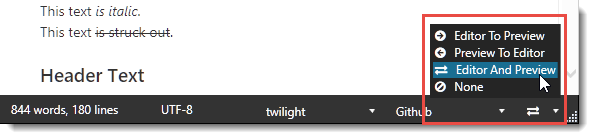
Figure 4 - Selecting the preview sync mode from the status bar dropdown
EditorAndPreview Sync Mismatches
When you use preview mode EditorAndPreview you may find that occasionally the preview or editor won't line up properly. This can happen when working with large images or code blocks (or any other non-text objects) when the previewer can't find an appropriate element to sync to.
For most common scenarios this isn't a big problem, but if you run into frequently you might be better off to use EditorToPreview sync mode rather than on EditorAndPreview. You can still scroll the preview by scrolling the editor achieving a similar, but more consistent sync experience.
For best operation the default EditorToPreview sync mode works most reliably.
EditorAndPreview is useful if you frequently read your content in the previewer and browse around the document. Just remember that there may be occasional sync problems in this mode.
For best performance - especially in very large documents (100k words+) - turning syncing off and using NavigationOnly can improve typing performance. In this mode the previewer only refreshes when you click the mouse into the editor document, or you use the Ctrl key to force an explicit preview refresh in the previewer.
Finally None will not sync the editor and preview at all even using the force Preview.
Forcing a Refresh of the Preview
If you one of the Editor Sync modes, you generally don't have to refresh manually, but there may be an occasional situation where the Preview doesn't automatically sync. In that case you can use:
- Press the
Ctrlkey to refresh and spellcheck - Save the document using
Ctrl-sorCtrl-shift-s
Both operations force a full document refresh.
Refresh Performance
For very large documents the preview refresh and spell checking can cause performance problems with the preview. Essentially the preview can take longer to refresh than the next auto-refresh interval which can cause annoying lag while typing as the editor is locked during the preview update.
For very large documents a recommendation is:
- Set Preview Sync to Navigation Only
- Manually refresh as needed with the
Ctrlkey
See also
Comment or report problem with topic